React Fundamentals: Components, JSX, State, and Re-rendering
If you are learning React for the first time, you may wonder:
“Why did developers create React when JavaScript already existed?”
JavaScript can already change HTML, handle clicks, update text, and build interactive websites. So, why do we need React?
The answer is complexity.
As websites became larger and more interactive, managing the DOM manually became difficult. Developers needed a better way to build user interfaces that were organized, reusable, and easier to maintain.
That is where React comes in.
React gives us a simple way to think about user interfaces:
Break the UI into small components, give those components data, and let React update the screen when that data changes.
Let's understand this step by step.
1. Why Does React Exist?
Before React, developers often used JavaScript to directly change elements on a webpage.
For example:
document.getElementById("title").textContent = "Hello!";
This works perfectly for small projects.
But imagine a dashboard with:
User information
Notifications
Messages
Charts
Product lists
Shopping carts
Buttons
Different sections that update independently
Managing all these elements manually can become messy.
You have to keep track of:
Which element needs to change
When it should change
What data it should display
Which other elements are affected
React takes a different approach.
Instead of manually telling the browser how to change every element, we describe what the UI should look like based on the current data.
React then handles the updates.
React's main idea
Think of a website as a collection of small building blocks.
For example:
Website
│
├── Navbar
├── Sidebar
├── UserProfile
├── ProductList
│   ├── ProductCard
│   ├── ProductCard
│   └── ProductCard
└── Footer
Each part can become a component.
This makes large applications easier to understand and maintain.
2. What is JSX?
When you first see React code, you might notice something strange:
function Welcome() {
  return <h1>Hello, Tanishka!</h1>;
}
JavaScript normally doesn't look like this.
So what is <h1> doing inside JavaScript?
This is JSX.
JSX stands for JavaScript XML. It allows us to write HTML-like code inside JavaScript.
For example:
const name = "Tanishka";

function Welcome() {
  return <h1>Hello, {name}!</h1>;
}
The {name} tells React:
“Run this JavaScript expression here.”
JSX vs HTML
JSX looks similar to HTML, but they are not exactly the same.
For example, HTML uses:
<div class="card">
In JSX, we normally write:
<div className="card">
Another example:
<button onClick={handleClick}>
  Click Me
</button>
JSX uses JavaScript-style names such as className and onClick.
Why was JSX introduced?
Without JSX, React code can become harder to read.
Instead of:
return React.createElement(
  "h1",
  null,
  "Hello World"
);
we can simply write:
return <h1>Hello World</h1>;
Much easier to understand.
JSX is mainly a developer-friendly way of describing the UI.
How does JSX work?
Browsers don't directly understand JSX.
Tools such as a compiler/bundler transform JSX into regular JavaScript.
The basic idea is:
JSX
  ↓
JavaScript
  ↓
Browser
  ↓
UI
You write JSX, and the development tools take care of converting it into JavaScript the browser can run.
3. What are Components?
A component is a reusable piece of UI.
Think about a product card on an online shopping website.
It might contain:
Product Image
Product Name
Price
Buy Button
Instead of writing the same code again and again, we can create one component:
function ProductCard() {
  return (
    <div>
      <img src="product.jpg" />
      <h2>Shoes</h2>
      <p>₹999</p>
      <button>Buy Now</button>
    </div>
  );
}
Now we can use it multiple times.
<ProductCard />
<ProductCard />
<ProductCard />
This is one of React's biggest advantages:
Write once, reuse many times.
Function Components
Modern React mainly uses function components.
A simple component looks like this:
function Welcome() {
  return <h1>Welcome to React!</h1>;
}
We can then use it:
function App() {
  return (
    <div>
      <Welcome />
    </div>
  );
}
Here, App is using the Welcome component.
4. Component Composition
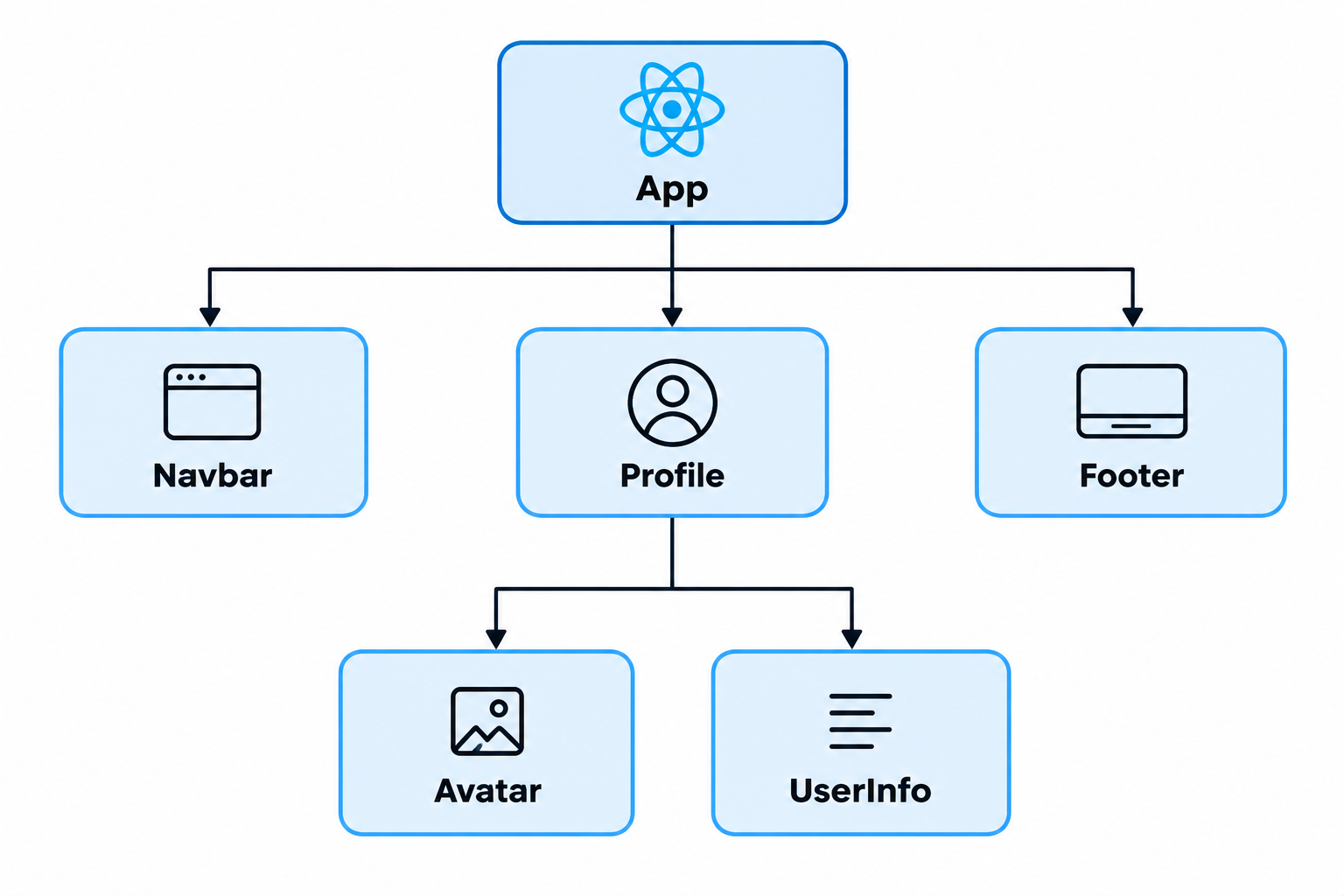
Large applications should not be one giant component.
Instead, we can break them into smaller pieces.
For example, a social media page could look like:
App
│
├── Navbar
├── Profile
├── PostList
│   ├── Post
│   ├── Post
│   └── Post
└── Footer
Each component handles a specific part of the UI.
This is called component composition.
It makes the application easier to:
Understand
Reuse
Test
Modify
Maintain
5. What are Props?
Components often need data.
For example, our ProductCard shouldn't always display the same product.
We can pass information to it using props.
function ProductCard(props) {
  return (
    <div>
      <h2>{props.name}</h2>
      <p>₹{props.price}</p>
    </div>
  );
}
Now we can use it like this:
<ProductCard name="Shoes" price="999" />
<ProductCard name="Watch" price="1499" />
The result could be:
Shoes
₹999

Watch
₹1499
Props allow us to make components reusable.
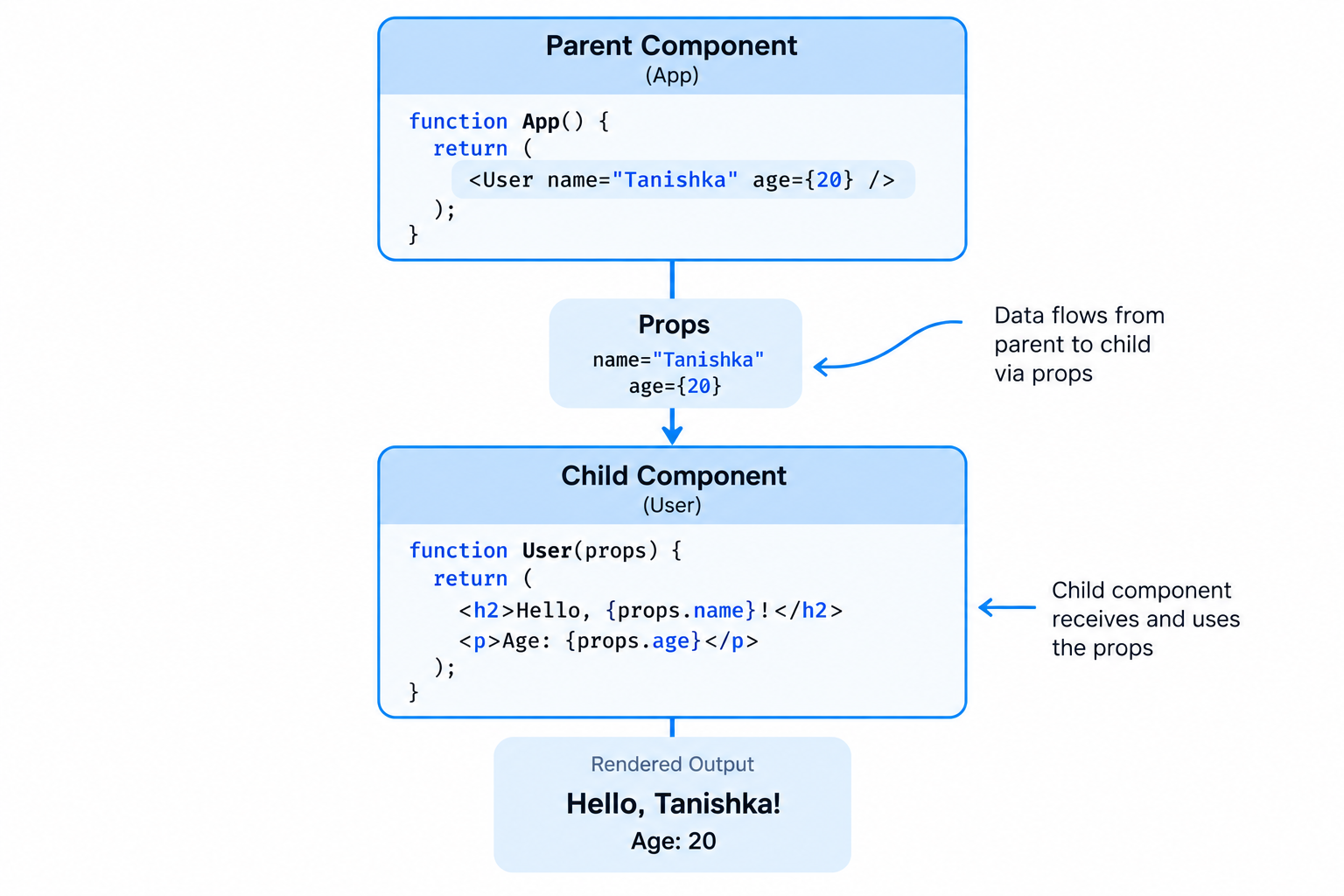
Parent → Child Communication
Props usually flow from a parent component to a child component.
Parent
  │
  │ props
  ↓
Child
For example:
function App() {
  return <User name="Tanishka" />;
}
The User component receives the name:
function User(props) {
  return <h2>Hello {props.name}</h2>;
}
So the parent gives data to the child.
Props are Read-Only
A child component should not directly change its props.
Think of props as information given to the component.
The component can use that information, but it should not modify it.
This keeps data flow predictable.
6. What is State?
Props come from outside a component.
But sometimes a component needs to remember something itself.
For example:
Is a button clicked?
Is a menu open?
What is the current count?
What has the user typed?
This is where state comes in.
State is information that a component can remember and update.
A simple example is a counter:
function Counter() {
  const [count, setCount] = useState(0);

  return (
    <div>
      <p>Count: {count}</p>
      <button onClick={() => setCount(count + 1)}>
        Increase
      </button>
    </div>
  );
}
Here:
count → current value
setCount → changes the value
When the button is clicked, the state changes.
Why do we need State?
Imagine a shopping cart.
Initially:
Cart: 0 items
The user clicks Add to Cart.
Now:
Cart: 1 item
The UI needs to change because the data changed.
State allows React to keep track of that changing information.
7. Understanding Re-rendering
This is one of the most important ideas in React.
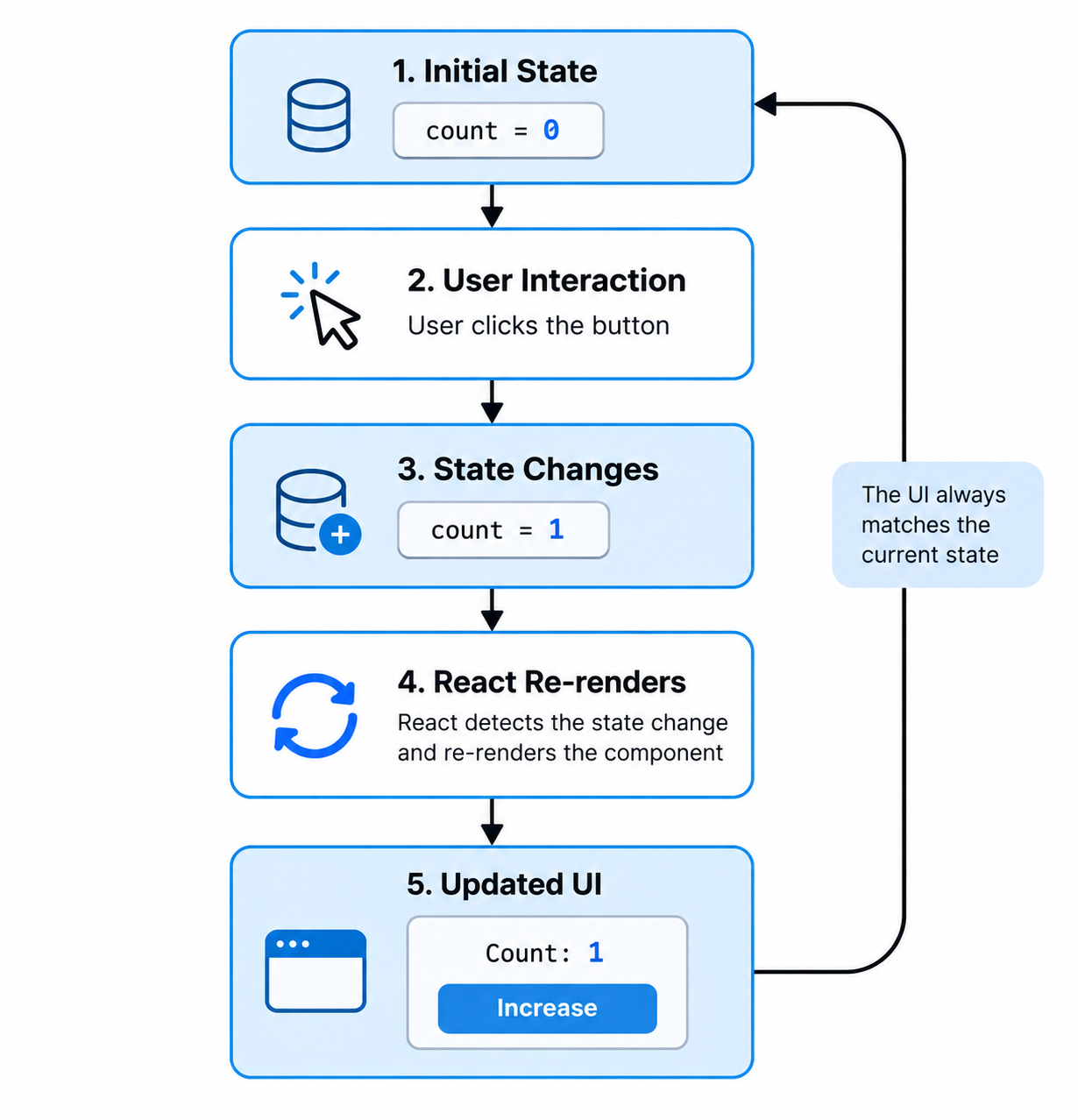
Suppose our counter has:
Count: 0
The user clicks the button.
The state becomes:
Count: 1
React notices that the state changed and re-renders the component.
In simple terms:
State changes
     ↓
React renders again
     ↓
UI reflects new data
This is why we don't usually have to manually find the <p> element and change its text.
React handles the UI update based on the new state.
What Causes a Re-render?
A component can re-render when relevant data changes, such as:
1. State changes
setCount(count + 1);
2. Props change
If a parent gives a child new props, the child may re-render.
3. Parent re-renders
When a parent component renders again, its children can also be rendered again, subject to React's optimization behavior.
The important beginner idea is:
When the data used by the UI changes, React can render the UI again to keep it in sync.
8. React is Declarative
One of the biggest differences between traditional DOM manipulation and React is the idea of declarative programming.
Let's understand this with a simple example.
Imperative approach
You tell the browser exactly what to do:
Find the button
Find the text
Change the text
Change the class
Show the element
Hide another element
You are giving instructions.
Declarative approach
You describe what the UI should look like:
If the user is logged in → show the profile.

If the user is logged out → show the login button.
React takes care of updating the actual DOM.
So instead of focusing on:
“How do I change this element?”
you focus on:
“What should the UI look like with this data?”
That is the power of declarative UI.
9. Understanding the Component Tree
React applications can be thought of as a tree of components.
For example, a dashboard might look like:
App
│
├── Navbar
│
├── Dashboard
│   │
│   ├── UserProfile
│   ├── Statistics
│   └── Notifications
│
└── Footer
App is the parent.
Dashboard is its child.
UserProfile, Statistics, and Notifications are children of Dashboard.
This structure helps us understand how the application is organized.
Data Flow
React generally follows a simple data flow:
Parent
   ↓
Child
   ↓
Child
Data is commonly passed downward using props.
For example:
App
 ↓
Dashboard
 ↓
UserProfile
The App can pass information to Dashboard, which can pass information to UserProfile.
This predictable structure makes applications easier to reason about.
10. Common Beginner Mistakes
When learning React, there are a few mistakes that are very common.
Mistake 1: Mutating State Directly
Avoid changing state like this:
count = count + 1;
Instead, use the state update function:
setCount(count + 1);
React needs to know that the state has changed.
Mistake 2: Confusing Props and State
A simple way to remember them:
Props
Data given to a component.
State
Data managed by a component.
Think:
Props → Comes in
State → Component remembers/controls
Mistake 3: Using State for Everything
Not every value needs to be state.
If a value doesn't need to change and doesn't affect rendering, it may not need state.
Before creating state, ask:
“Does this value actually need to change the UI?”
If not, you probably don't need state for it.
Mistake 4: Creating Huge Components
Avoid putting an entire application inside one component.
Instead of:
App
└── Everything
break it into smaller components:
App
├── Navbar
├── Sidebar
├── MainContent
├── Profile
└── Footer
Smaller components are generally easier to understand and reuse.
Mistake 5: Poor Component Organization
A good component should usually have a clear responsibility.
For example:
ProductCard → Displays a product
Navbar → Handles navigation
Profile → Displays user information
Button → Reusable button
When each component has a clear purpose, the application becomes easier to manage.
11. How to Think in Components
When building a React application, don't immediately start writing code.
First, look at the screen and ask:
“What are the different pieces of this UI?”
Suppose you're building a shopping website.
You might identify:
Shopping App
│
├── Navbar
├── SearchBar
├── CategoryList
├── ProductList
│   └── ProductCard
├── Cart
└── Footer
Now you have a plan.
Each part can become a component.
This way of thinking is called component-based architecture.
12. Putting Everything Together
Let's connect everything we've learned.
Imagine a user profile page.
The application might look like:
App
│
└── Profile
    ├── ProfileImage
    ├── UserInfo
    └── FollowButton
The App can pass user information through props:
App
 ↓
Profile
 ↓
UserInfo
The FollowButton can have its own state:
Following: false
       ↓
User clicks button
       ↓
State changes
       ↓
Following: true
React re-renders the relevant UI so the screen matches the current state.
This gives us a simple mental model:
Components
     ↓
Receive Props
     ↓
Use State
     ↓
State/Props Change
     ↓
React Re-renders
     ↓
Updated UI
13. Why React Became Popular
React became popular because it made building complex interactive interfaces easier to organize.
Its important ideas include:
Reusable components
Declarative UI
Predictable data flow
State-driven interfaces
Component composition
Easier management of complex UIs
Instead of thinking about the entire website as one huge page, developers can think about it as a collection of smaller, reusable pieces.
Conclusion
React is not just a JavaScript library for creating buttons and pages.
It introduces a different way of thinking about user interfaces.
The basic ideas are actually quite simple:
Components break the UI into reusable pieces.
JSX lets us describe UI using HTML-like syntax inside JavaScript.
Props allow components to receive data.
State allows components to remember changing data.
Re-rendering keeps the UI updated when data changes.
Declarative programming lets us describe what the UI should look like instead of manually changing every DOM element.
Once these concepts become clear, React starts feeling much less complicated.
You don't need to memorize every React API at the beginning. First, understand the mental model:
Build small components → give them data → manage changing state → let React keep the UI in sync.
That's the foundation of React.